



Wizardo casino app
Wizardo Casino App is not a classic application to download from Google Play or the App Store. Our official mobile version works via Progressive Web App, or PWA: you open the site from the browser, add the icon to the Home screen, and access Wizardo Casino with a tap, just as you would with an app.
With this solution you can use our services from a smartphone or tablet without installing APK files, external software, or unverified apps. From our mobile version you can access the lobby, log into your account, check promotions, participate in missions, manage the Wallet section, and use the support channels available on the site.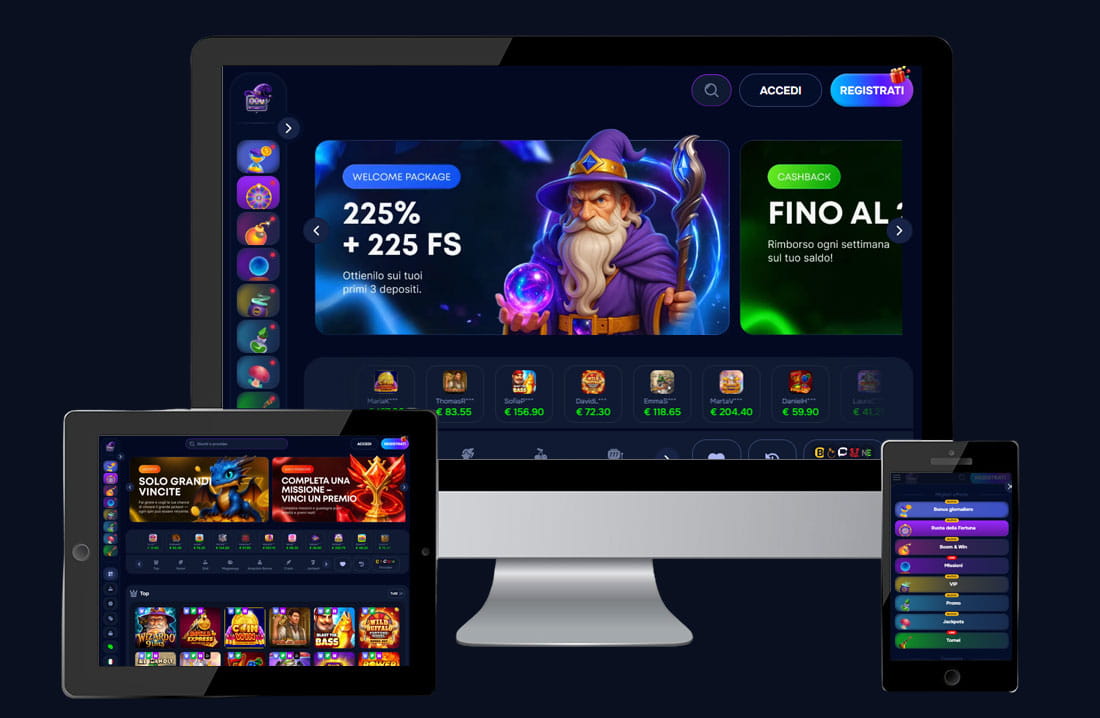
Casino app features
| Item | Information |
|---|---|
| App type | Progressive Web App, installable from the browser |
| Google Play | Not required to use the PWA on Android |
| App Store | Not required to use the PWA on iPhone or iPad |
| APK | To be avoided if it comes from external or unofficial sources |
| Android | Installation via Chrome or a PWA-compatible browser |
| iOS / iPadOS | Installation via Safari and the "Add to Home" function |
| Main features | Games lobby, login, PROMO, missions, VIP, Wallet, and support |
| Payments | Deposits and withdrawals from the Account → Wallet section, if available in the profile |
How the PWA works
Our PWA of Wizardo Casino works as an advanced shortcut to the mobile site. Once added to the main screen, the icon lets you open the casino more quickly, without having to type the address in the browser every time.
The experience is similar to that of an app: you can access your account, browse the lobby, open slots and live casino, check bonuses and missions, manage your profile, and use the sections available in your account. The difference is that the PWA remains linked to our official site and does not require a store download.
Why use the PWA
- Faster access: the icon stays on the device's Home screen.
- No external APK: you do not need to download files from unverified sources.
- Mobile compatibility: works on Android, iPhone, iPad, and compatible tablets.
- Site features: you can use the lobby, account, Wallet, PROMO, missions, and support.
- Site-side updates: many changes are managed directly on our site.
Downloading the Wizardo Casino app
If you search for "Wizardo Casino APK" or "download Wizardo Casino app", you may find external pages promising files to install manually. We do not recommend this method. The safest solution is to open the official site and install the PWA from the browser.
An unverified APK may contain modified versions, fake login screens, unauthorised code, or tools that collect personal data. Even if a page uses a name, logo, or colours similar to Wizardo, it does not mean it is connected to our website.
Practical security rules
- Do not download APKs from forums, mirrors, social media, private messages, or unofficial channels.
- Do not enter your email, password, or payment details on unverified pages.
- Always check the domain before logging in.
- Install the PWA only after opening the official site from the browser.
- Avoid shortened links or pages that promise "modified" versions of the app.
Wizardo Casino on Google Play and App Store
To use an online casino on mobile, you do not need to look for an app on Google Play or the App Store. On Android, you can install the PWA from the browser; on iPhone and iPad, you can add the site to the Home screen via Safari.
If you find applications with similar names in stores or on external sites, always verify that they are officially linked to the brand before installing them. In the absence of confirmation from the official site, we recommend using the PWA.
How to install the Wizardo Casino app on Android
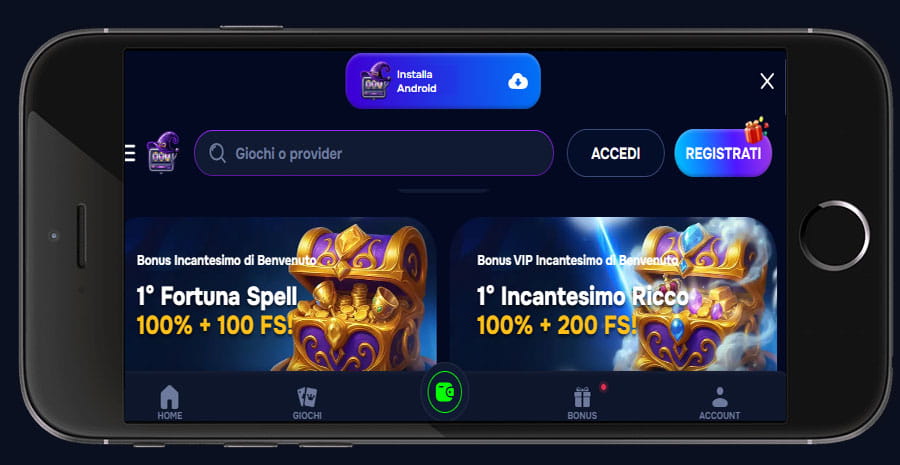 On Android you install the PWA from the browser. The path may vary slightly depending on the device, but the steps are generally as follows:
- Open the official Wizardo Casino site with Google Chrome or a PWA-compatible browser.
- Wait for the page to fully load.
- Tap the browser menu, usually indicated by the three dots.
- Choose Add to Home screen or Install app.
- Confirm the icon name, if prompted.
- Tap Add or Install.
- The icon will appear on the main screen.
After installation, you can open Wizardo Casino by tapping the icon. To play with a real balance, a registered account, deposit, and compliance with the site's conditions are still required.
How to install the Wizardo Casino app on iPhone and iPad
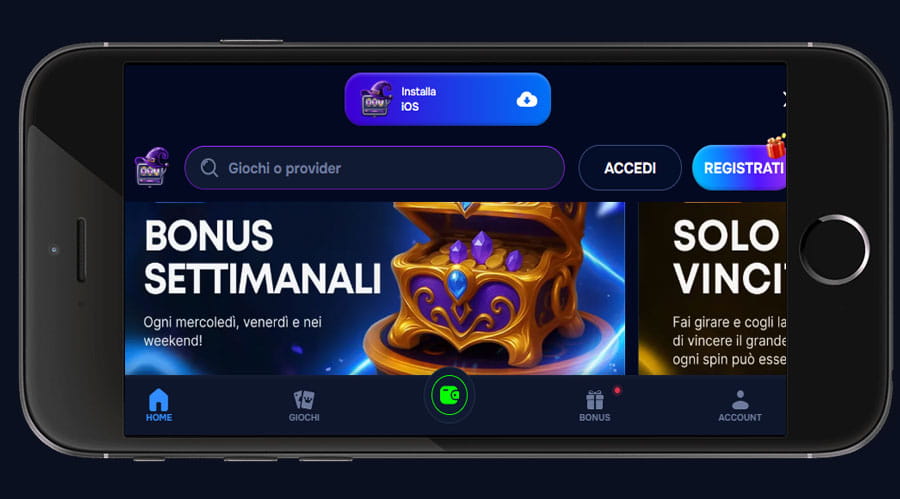 On iOS and iPadOS you add the PWA using Safari's share function. Even though other browsers can open the site, Safari is the most suitable method for adding the icon to the Home screen.
- Open Safari on iPhone or iPad.
- Tap the Share icon, i.e. the square with the arrow.
- Scroll through the menu and select Add to Home.
- Check the icon name.
- Tap Add.
- The Wizardo Casino icon will be available on the main screen.
From that moment you can open Wizardo Casino like an app. The PWA still uses the browser engine, so the quality of the experience also depends on your connection, iOS version, Safari settings, and device compatibility.
What you can do with the Wizardo Casino app
Our PWA does more than just open the homepage. From the mobile version, you can manage key Wizardo Casino features based on the sections available in your profile.
| Area | Mobile-accessible features |
|---|---|
| Account | Login, registration, password recovery, and profile data management |
| Lobby | Access to slots, live games, table games, and other available titles |
| Promos | Check active offers, available bonuses, and promotional terms |
| Missions | Participate in missions, check tasks, and track progress |
| VIP | Check loyalty points, level, cashback, and available perks |
| Wallet | Deposits and withdrawals, based on the methods shown in your account |
| Support | Contact our support team via the channels listed on the site |
Bonuses, missions, and VIP on mobile
 From the PWA, you can open the Promos section, check available offers, and read the terms before activating them. Bonuses shouldn't be chosen based solely on the percentage or Free Spins; it is important to check the minimum deposit, wagering requirements, validity period, maximum bet, and cashout limits.
You can view missions in the dedicated section. Before participating, check the required tasks, validity period, reset details, rewards, and the terms and conditions of the awarded Free Spins. You can also track the VIP program on mobile, with loyalty points, cashback, and benefits visible based on your level.
Deposits and withdrawals from mobile
Deposit from mobile
- Open the PWA or the official mobile site.
- Log into your account.
- Tap Deposit or go to Account → Wallet.
- Choose the available method.
- Enter the amount.
- Fill in the required fields.
- Confirm the payment.
Withdrawal from mobile
- Open Account.
- Go to Wallet.
- Select Withdraw.
- Choose the available method.
- Enter the amount.
- Confirm the request.
Withdrawals may require KYC verification, payment method checks, and completion of any wagering requirements. Always use real details and methods registered in the account holder's name.
Common problems with the Wizardo Casino PWA
The PWA depends on the browser, device, connection, cache, and site availability. If something is not working, try the simplest checks first.
I cannot see "Install app"
- On Android, try an updated version of Google Chrome.
- On iPhone and iPad, use Safari.
- Wait for the site to fully load.
- Check whether the option appears as "Add to Home screen".
- If the option does not appear, use the mobile site from the browser anyway.
The icon only opens the browser
- Remove the icon from the Home screen.
- Open the official site again in the correct browser.
- Repeat the procedure for adding to the Home screen.
- Check that the operating system is up to date.
A game does not load
- Refresh the page.
- Close and reopen the PWA.
- Check the connection.
- Clear the browser cache and cookies.
- Try another compatible browser.
- Disable VPN, proxy, or ad blockers if they are interfering with loading.
- Contact our support if the problem continues.
The deposit does not appear in the balance
- Check whether the payment was confirmed by the chosen method.
- Wait a few minutes before repeating the operation.
- Save the receipt, amount, time, and method used.
- Contact our support with the transaction details.
Accessibility and feedback
We want to make the mobile experience usable on different devices and configurations. Some interface elements may depend on the browser, operating system, accessibility settings, and assistive technology used by the player.
If you encounter navigation difficulties, display problems, unreadable text, or elements incompatible with your device settings, you can submit a report via the support channels available on the platform. Clear reports help us identify technical issues and improve the mobile experience.
Security and responsible gambling on mobile
Mobile access makes Wizardo Casino easier to open, so it is important to use personal limits. Before playing, set a budget, check the session duration, and do not use gambling as a way to recover losses or generate income.
- Use a strong password and do not share it.
- Do not save credentials on shared devices.
- Avoid public Wi-Fi networks when making payments.
- Only play with money you can afford to lose.
- Take regular breaks during mobile sessions.
- Contact our support if you want to close the account or take a break.
Access with a real balance is permitted only to adult users and in compliance with the applicable laws in their country.
Conclusion
The Wizardo Casino App is our PWA version of the official site. It does not require a download from Google Play or the App Store, does not require APK installation, and allows you to access the lobby, account, PROMO, missions, VIP, Wallet, and support more quickly.
To use it correctly, open the official site from the browser and add it to the Home screen. Before playing with a real balance, always check bonus conditions, payment methods, account verification, and responsible gambling rules.
FAQ
Where can I download the Wizardo Casino app?
There is no need to download a classic app from Google Play or the App Store. You can install the PWA from the browser by adding the official site to the Home screen.
Is there an official Wizardo Casino APK?
We recommend using the PWA from the official site. Avoid APKs downloaded from external or unverified sources.
Is Wizardo Casino on Google Play?
To use Wizardo Casino on Android it is not necessary to download an app from Google Play. You can open the official site with Chrome and add it to the Home screen.
Is Wizardo Casino on the App Store?
On iPhone and iPad you can use Safari and add the site to the Home screen. There is no need to install a classic app from the App Store.
How do I install Wizardo Casino on Android?
Open the official site with Chrome, tap the browser menu, choose "Add to Home screen" or "Install app", and confirm.
How do I install Wizardo Casino on iPhone?
Open the official site with Safari, tap Share, select "Add to Home", and confirm. The icon will appear on the main screen.
What can I do from the Wizardo PWA?
You can access the lobby, log in, check PROMO, missions, VIP, Wallet, and use our support available on the site.
Can I deposit and withdraw from mobile?
Yes. You can use Deposit or Account → Wallet, based on the methods available in your profile. Withdrawals may require KYC verification.
Why can't I see the "Install app" button?
The name of the option may change depending on the device. On Android try updated Chrome; on iOS use Safari and look for "Add to Home".
What do I do if a game does not load?
Refresh the page, check the connection, clear cache and cookies, disable VPN or ad blockers if necessary, and contact our support if the problem continues.
Payment methods





Providers